Google Forms is one of the easiest and most powerful tools for collecting information online. Whether you need a form for surveys, sign-ups, event registration, quizzes, or customer feedback, Google Forms lets you build professional forms in minutes — completely free.
In this guide, you’ll learn how to create a Google Form step by step, customize it, and share it the right way.
Why Use Google Forms?
Google Forms is popular because it’s:
- Free and cloud-based
- Easy for beginners
- Connected to Google Sheets
- Works on desktop and mobile
- Great for teachers, businesses, students, and nonprofits
Common Uses for Google Forms
You can create forms for:
- Surveys and questionnaires
- Event registration
- Appointment requests
- Job applications
- Classroom quizzes
- Contact and lead forms
- Waitlists and sign-ups
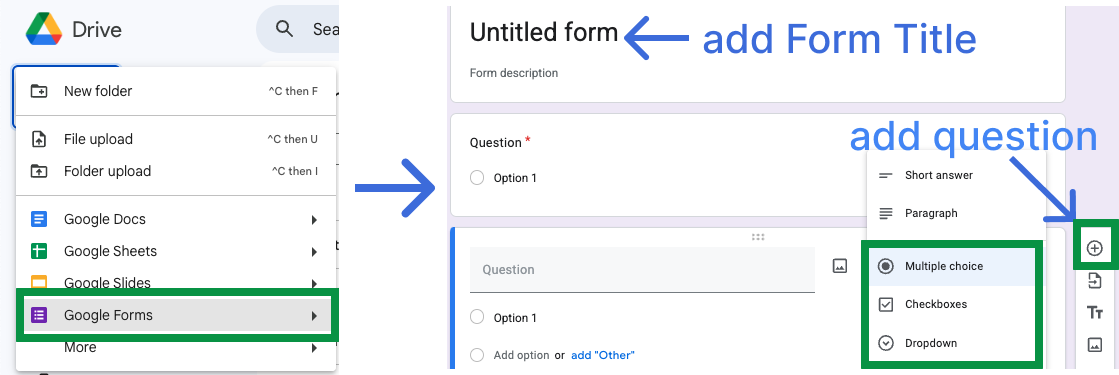
Step 1: Open Google Forms
To get started, go to forms.google.com and sign in with your Google account.
This opens the Google Forms dashboard where you can google forms create a new form or edit existing ones.
Step 2: Start a New Form
Choose:
Blank Form
Or Template Gallery (best for beginners + businesses)
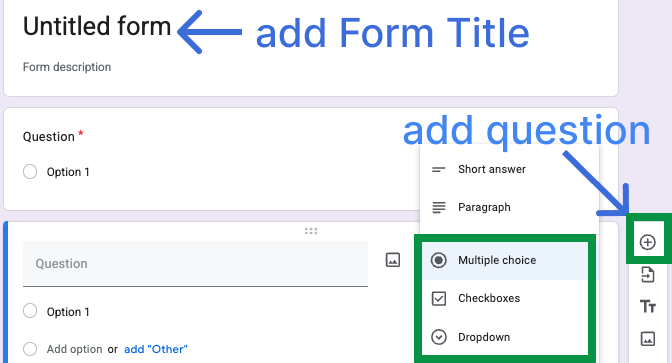
Step 3: Add a Title & Description
Give your form a clear purpose.
Example:
Title: “Customer Satisfaction Survey”
Description: “Your feedback helps us improve our services.”Â
Step 4: Add Questions
Click the + button to insert questions.
Tips:
- Use required questions for essential information
- Duplicate questions for faster building
- Add images or videos to improve engagement
- Use sections to create pages (great for quizzes or applications)
Step 5: Customize the Design
Click the Theme button to:
- Add a header image
- Change background colors
- Adjust fonts
- Apply branding
Step 6: Adjust Form Settings
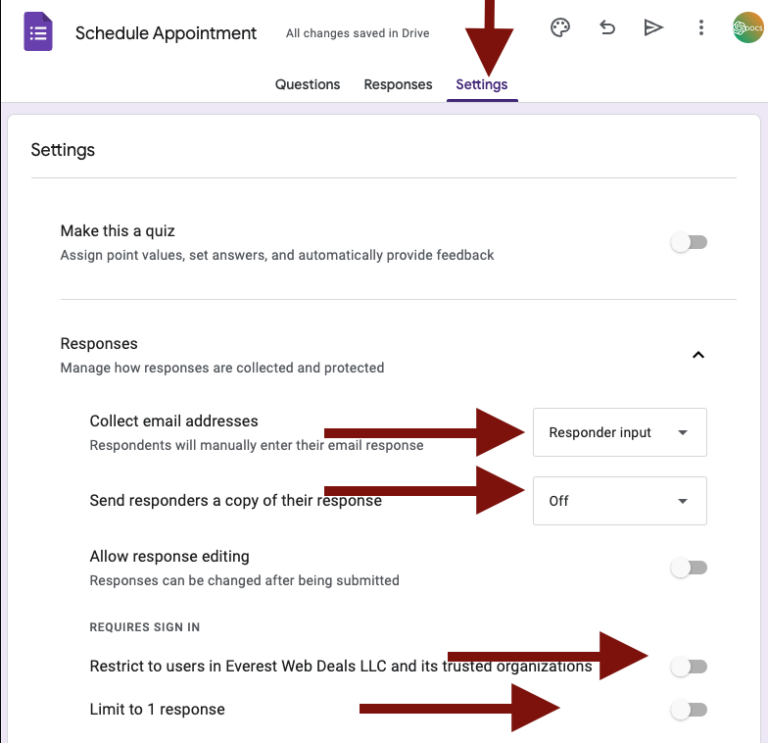
Click the Settings (gear) icon to control how your form works.
Useful options include:
- Collect email addresses
- Limit users to one response
- Allow editing after submission
- Turn the form into a quiz
- Send response receipts
- google forms create
Step 7: Share Your Form
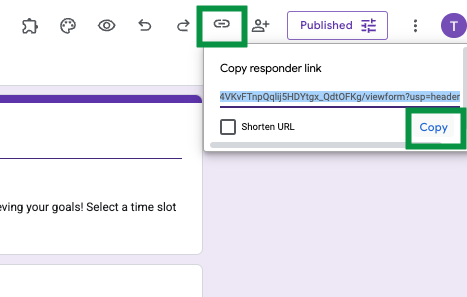
Click Send and share via:
- Shareable link
- Embed code for your website
- QR code
Step 8: View and Manage Responses
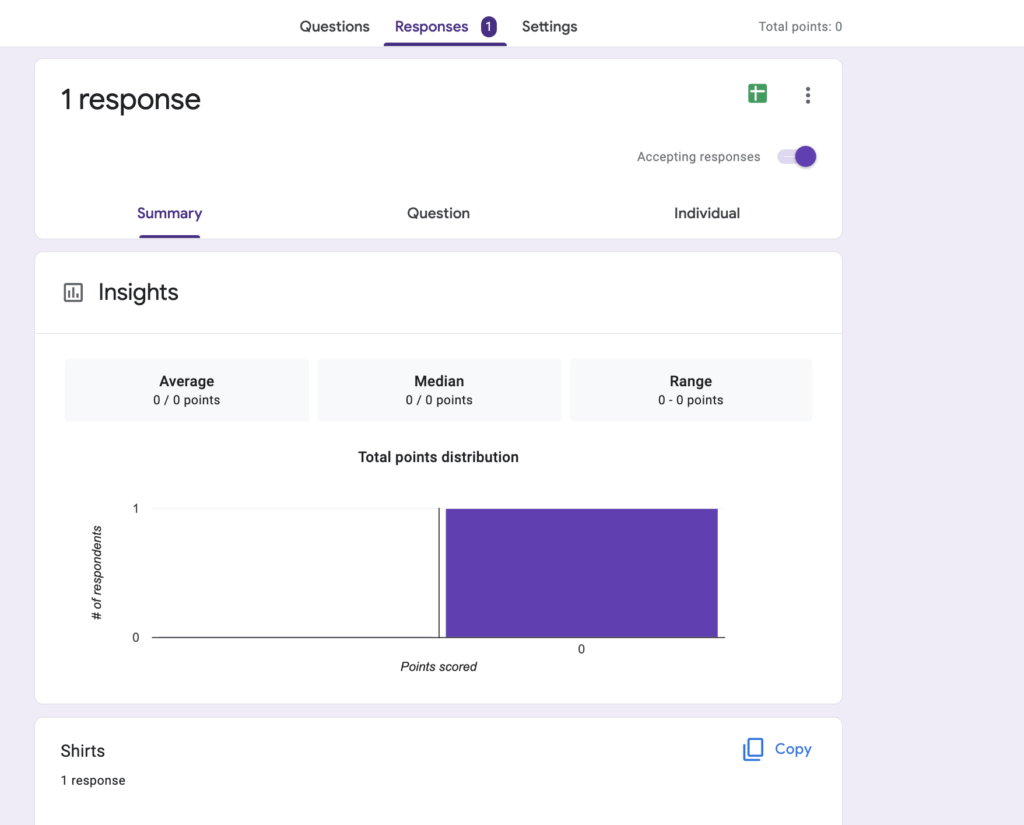
Open the Responses tab to:
- See real-time submissions
- View charts and summaries
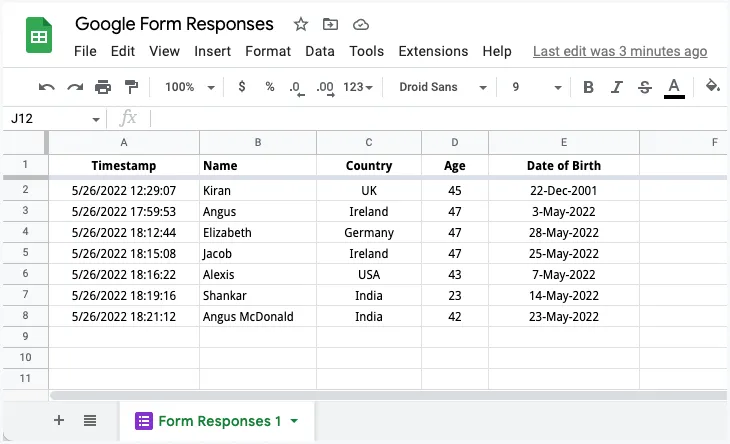
- Connect responses to Google Sheets
- Download data
- Turn the form on or off anytime

Make Google Forms Work Automatically
Need more control when you create a Google Form? A Google Forms survey is easy to start, but managing limits and time slots takes manual work.
If you build a Google Form to schedule appointments, bookings, sign-ups, or quizzes, these add-ons help it run automatically—limit spots, remove full options, auto-close on time, and keep responses organized.
Here are the tools you can use:
1. Form Choice Limiter – Limit Responses for Each Option
This add-on automatically removes or disables choices once they reach a limit.
- Perfect for:Â Appointment slots
- Event sign-ups
- Classroom project groups
- Registration with limited seats
Â
2. Form Limit Timer – Add Countdown, Start/End Times & Auto Close
Use this to:
- Add a timer
- Auto-close forms
- Set open/close windows
- Schedule tests or assignments
- Great for teachers and business scheduling.
👉 Download here
Â
3. Form Response Limit – Restrict Total Submissions
Once the limit is reached, the form will close automatically, so you don’t need to monitor it manually. 👉 Download Here
Â
4. Form Field Range (Populate Form Choices From Google Sheets)
 Use this to:
- Load real-time choices from a Google Sheet
- Update form choices automatically
- Manage student lists, inventory, or event names
👉 Download Here
Google Forms is a simple, reliable tool for collecting responses, with easy customization and Google Sheets integration.
With add-ons like Form Choice Limiter, Form Limit Timer, and Form Field Range, you can automate limits and scheduling, reduce manual work, and get more control.
Whether you’re running sign-ups, surveys, or events, the right add-ons turn Google Forms into a smooth, automated system.
 Alternative Versions
Â
🎓 Version for Teachers
Creating Google Forms for Classrooms: Quizzes, Assignments & Sign-Ups
Google Forms is a powerful tool for teachers. It helps you collect student work, run quizzes, and manage class activities easily.
How teachers use Google Forms:
- Create online quizzes with automatic grading
- Collect homework and assignments
- Organize group project sign-ups
- Create parent volunteer or conference sign-up forms
Helpful features:
- Turn forms into quizzes
- Limit one response per student
- Set time limits for tests using add-ons
- Automatically remove full project group options
With the right add-ons, teachers can save time and avoid manual work.
Â
🏢 Version for Business
How Businesses Can Use Google Forms for Customer Feedback & Lead Collection
Google Forms is a simple way for businesses to collect customer information and feedback.
Common business uses:
- Customer feedback surveys
- Lead collection forms
- Job application forms
- Service request forms
Why businesses like Google Forms:
- Easy to share by link or website
- Automatically saves data to Google Sheets
- Works well with automation add-ons
Add-ons help businesses limit responses, close forms automatically, and manage submissions without extra tools.
🎉 Version for Event Organizers
Using Google Forms for Event Registration & RSVP Management
Google Forms makes event planning easier. You can collect registrations, manage attendance, and avoid overbooking.
Perfect for:
- Event registrations
- RSVPs
- Workshops and seminars
- Limited seating events
Key benefits:
- Limit total registrations
- Automatically remove full time slots
- Create waitlists
- Close forms when full
With add-ons, your form can manage everything automatically while you focus on the event.
Â
❤️ Version for Nonprofits
How Nonprofits Can Collect Volunteers, Donations & Registrations Using Google Forms
Google Forms helps nonprofits collect information without spending money on expensive tools.
Nonprofit use cases:
- Volunteer sign-up forms
- Event registrations
- Donation interest forms
- Community surveys
Â
Why it works well for nonprofits:
- Â Easy to use
- Simple for volunteers to fill out
- Responses saved automatically
- Add-ons help control limits and deadlines
This makes organizing events and volunteers faster and more organized.