Excel Auto Format Tool – Smart Formatter to Clean and Fix
- numbers stored as text
- inconsistent currency formats
- extra spaces
- incorrect decimal separators
- inconsistent capitalization
- poorly formatted phone numbers and email addresses
- Date format — ISO, US, EU, or a custom pattern
- Number format — decimal separator, thousands separator, and decimal places
- Currency handling — remove currency symbols, keep the original symbol, or use a currency code
- Text rules — adjust letter case, trim whitespace, collapse repeated spaces, and insert spaces between letters and numbers
- Phone format — international, national, dashed, or plain digits
How to Use Smart Formatter
Step 1 — Open Smart Formatter
Open AI Tools For Excel from the Excel ribbon and select Smart Formatter.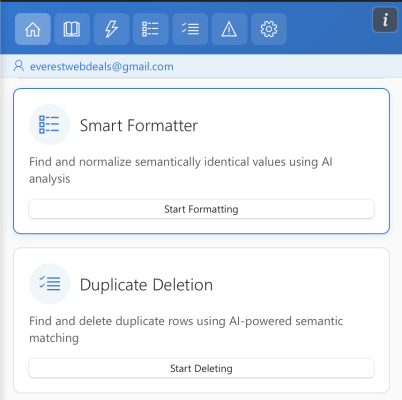
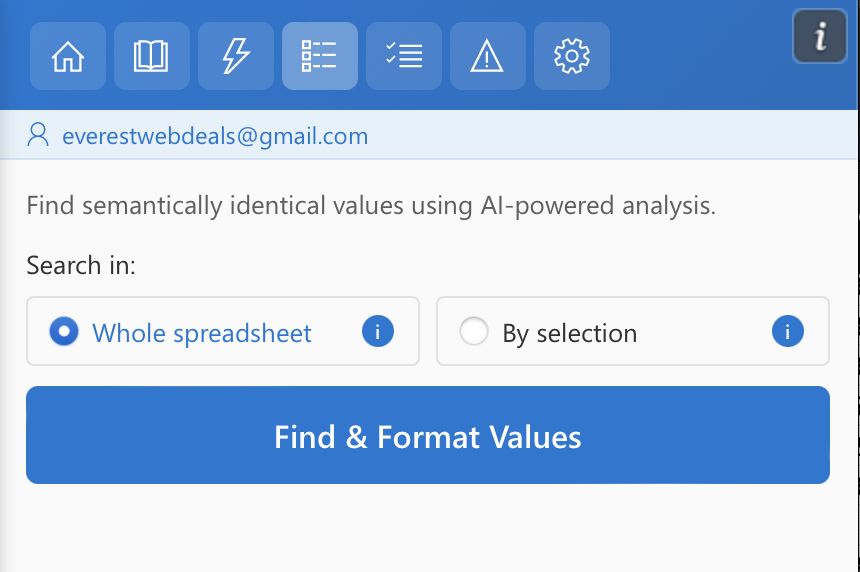
Step 2 — Choose Where to Search
Select the area of the spreadsheet you want to analyze for inconsistent or semantically identical values.
Whole Spreadsheet
Scans the entire worksheet to detect formatting inconsistencies and similar values across all rows and columns.
By Selection
Analyzes only the cells you have selected, allowing you to focus on a specific range of data.
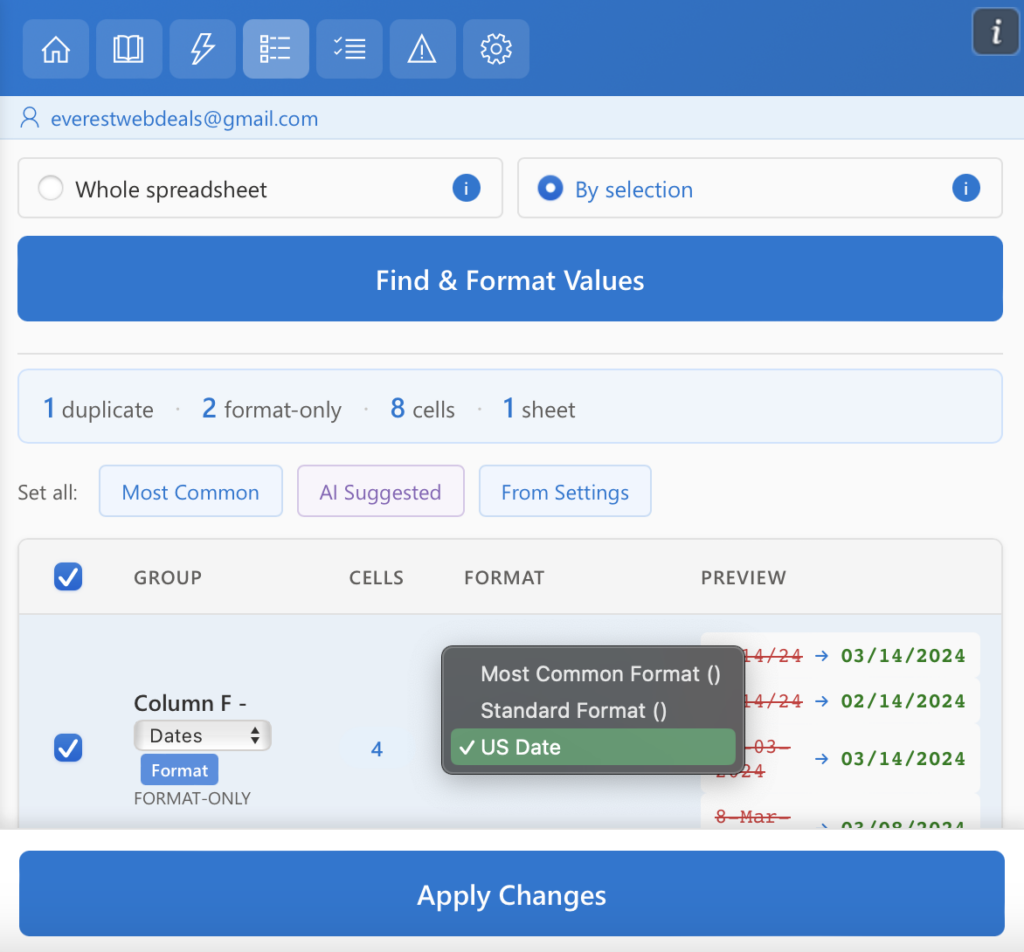
Step 3 — Find Formatting Issues
Click Find & Format Values to begin analyzing your data.
AI Tools For Excel scans the selected range or entire worksheet and automatically detects inconsistent values, formatting problems, and semantically identical entries.
The results panel displays:
- Detected duplicates — values that represent the same data but appear in different formats
- Formatting issues — inconsistent dates, numbers, currencies, text formatting, and spacing
- Affected cells — the total number of cells that require formatting correction
- Preview of formatting changes — a before-and-after view of how values will be standardized
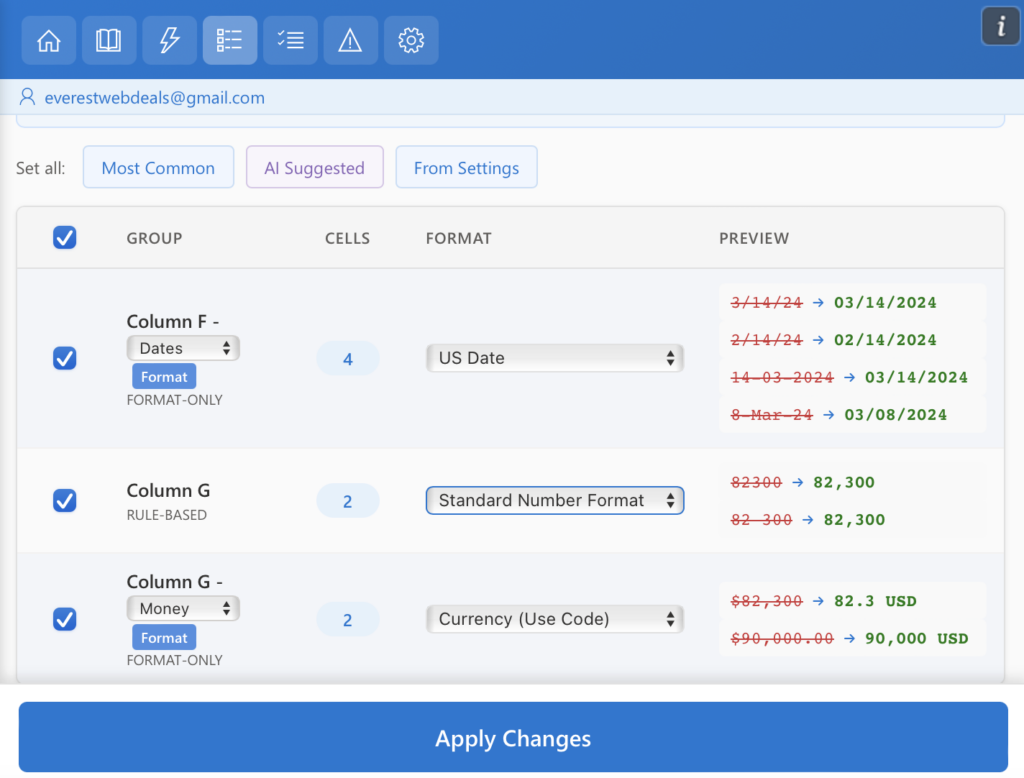
All detected issues are automatically grouped by type, making them easier to review and apply corrections efficiently.
Step 4 — Choose a Formatting Strategy
Before applying changes, select how the formatting should be standardized across the detected values.
You can quickly apply a global strategy using the Set all options:
- Most Common — applies the most frequently used format detected in the data.
- AI Suggested — uses AI analysis to recommend the most appropriate format.
- From Settings — applies the formatting rules defined in the Settings menu.
These options allow you to standardize all detected values with a single click.
Step 5 — Review and Adjust Formats
Each detected group of formatting issues can be reviewed and adjusted individually if needed.
For every group, AI Tools For Excel displays:
- Column name where the issue was detected
- Number of affected cells
- Selected format that will be applied
- Preview of formatting changes
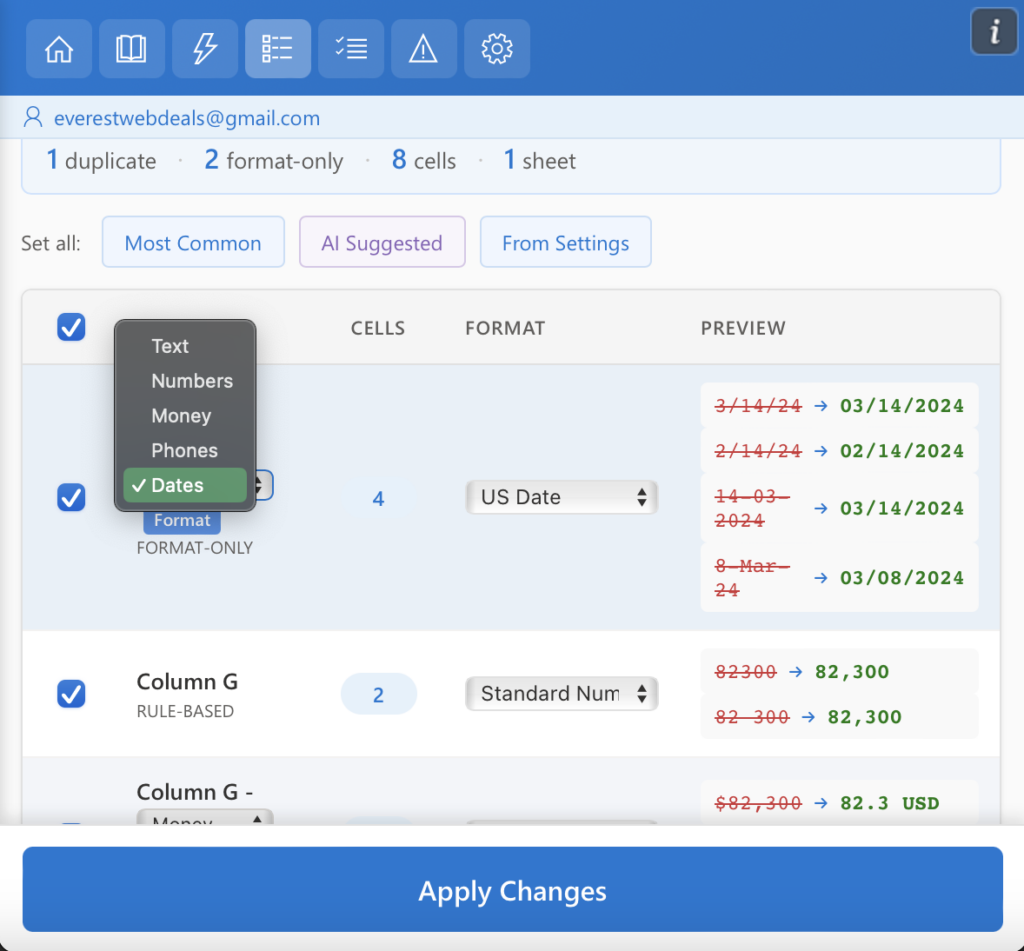
You can manually select the desired format for each group using the format menu. Supported formats include:
- Text
- Numbers
- Currency / Money
- Phone numbers
- Dates