Duplicate Deletion — Remove Duplicate Rows
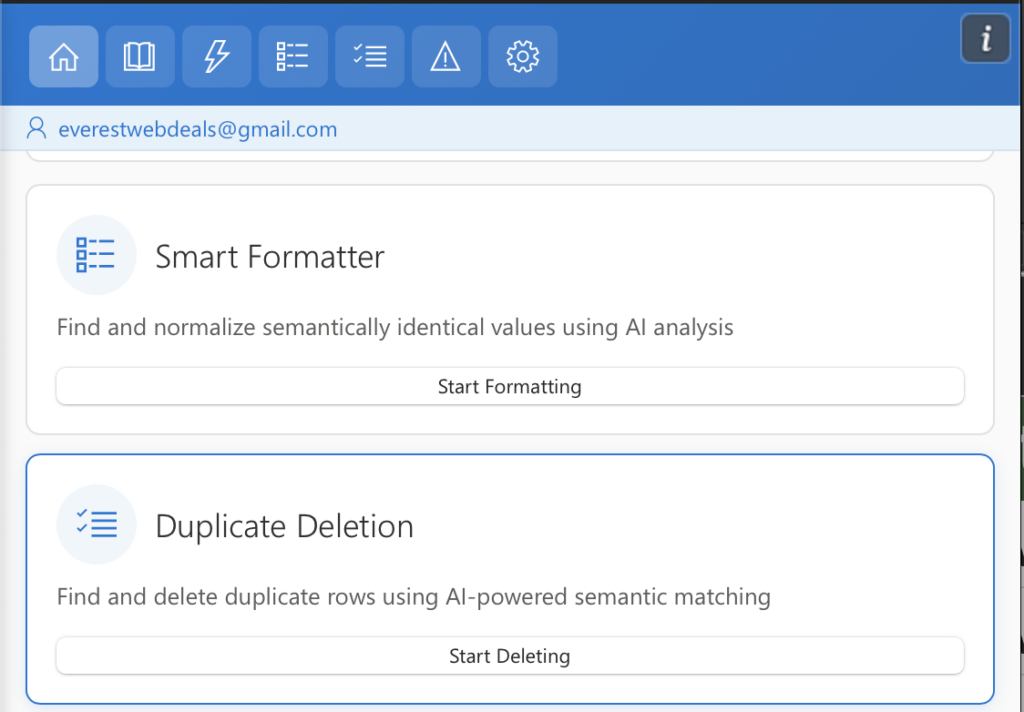
The Duplicate Deletion feature in AI Tools For Excel helps you remove duplicates in Excel quickly and accurately. This powerful Excel duplicate remover scans your worksheet to find duplicates in Excel and automatically delete duplicate rows in Excel using AI-powered semantic matching.
Unlike traditional duplicate tools, Excel AI Tools detects duplicates even when values look different but represent the same meaning.
How to Use Duplicate Deletion
Step 1 — Open Duplicate Deletion
Open AI Tools For Excel from the Excel ribbon and select Duplicate Deletion.
This tool allows you to find duplicates in Excel spreadsheets and remove repeated data from your worksheet.
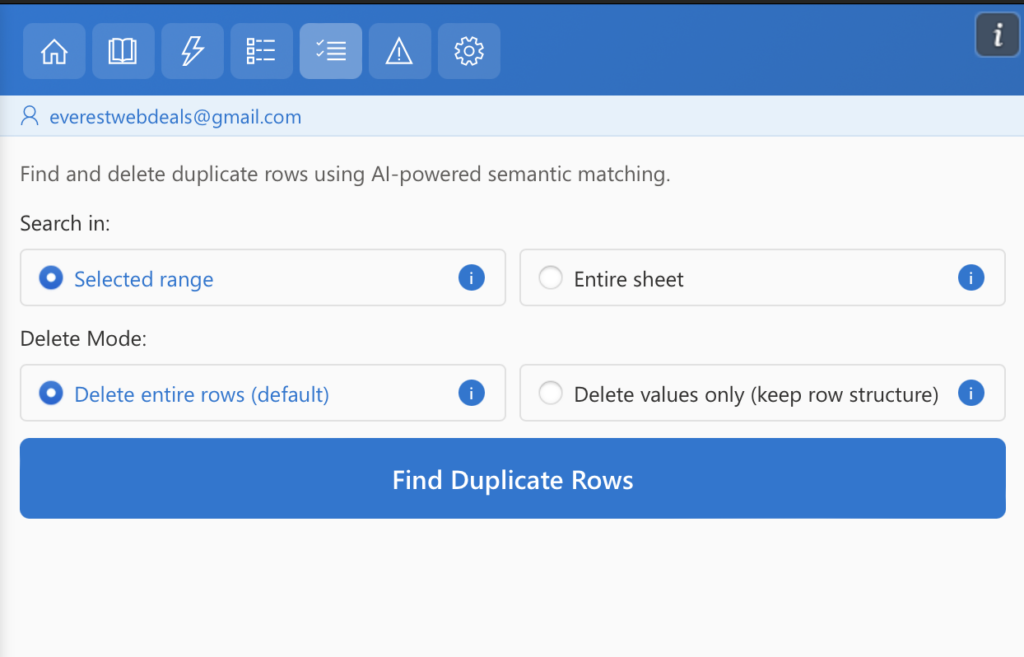
Step 2 — Select Search Area and Delete Mode
Select the area you want to scan for duplicate data in the current worksheet.
Search in:
- Selected range — analyze only the cells you selected
- Entire sheet — scan the full worksheet to find duplicate rows in Excel
Delete Mode:
- Delete entire rows (default) — remove duplicate rows and shift the remaining rows upward
- Delete values only (keep row structure) — clear values in duplicate rows while preserving the row layout and formatting
Step 3 — Find Duplicate Rows
Click Find Duplicate Rows to start scanning the selected data in your worksheet.
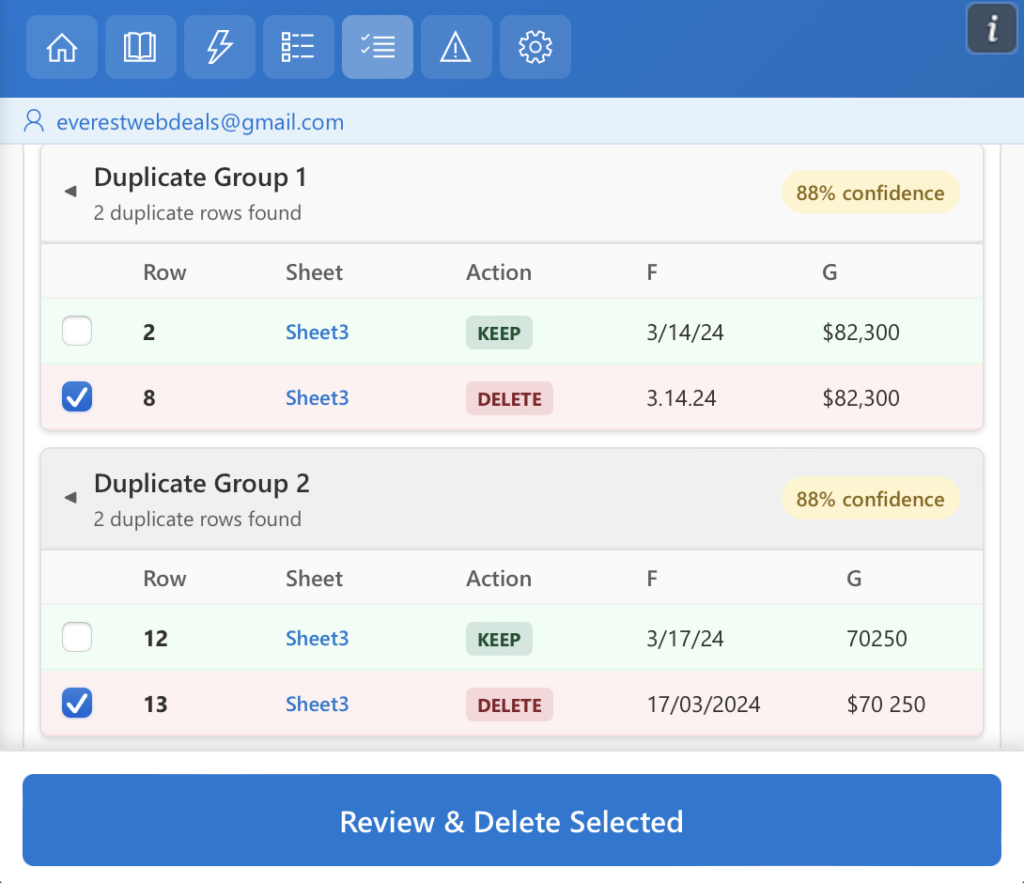
- Analyze selected data — the tool scans the selected range or entire sheet based on your settings.
- AI semantic matching — detects duplicates even if values are formatted differently (dates, numbers, currency, etc.).
- Automatic grouping — duplicate rows are grouped together for easier review.
- Confidence score — each group shows an AI confidence percentage indicating how likely the rows are duplicates.
- Preview before deletion — review which rows will be kept or deleted before applying changes.
This process helps you delete duplicate rows in Excel safely before applying changes.
Step 4 — Review Deletion Summary
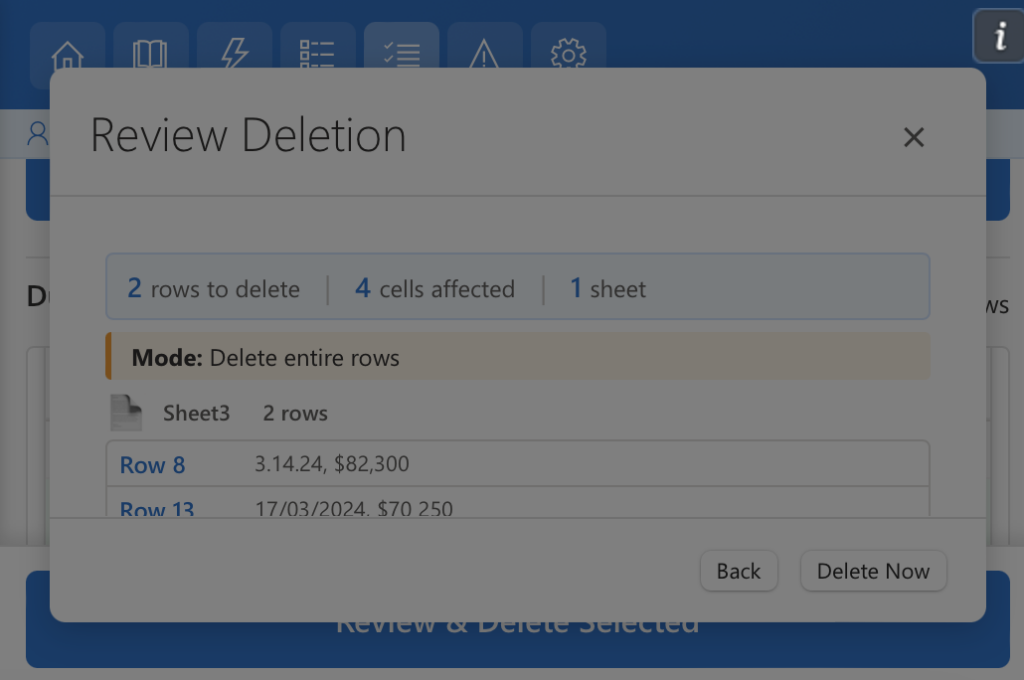
Before deleting duplicates, review the summary panel to confirm which rows will be affected.
The dialog displays the total number of rows to delete, affected cells, impacted sheets, the selected deletion mode, and a preview of the rows scheduled for removal.
Click Delete Now to proceed, or Back to revise your selection.