
Explain Excel Formula – AI Explanation Tool
Explain Formula — How It Works
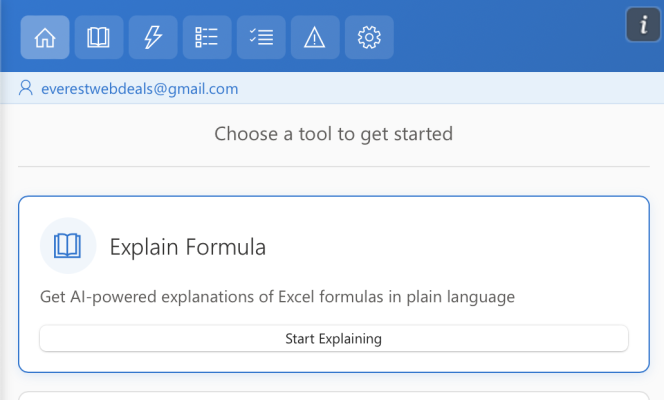
Step 1 — Open Explain Formula
Open AI Tools For Excel from the Excel ribbon and select
Explain Formula.
Step 2 — Choose How to Analyze the Formula
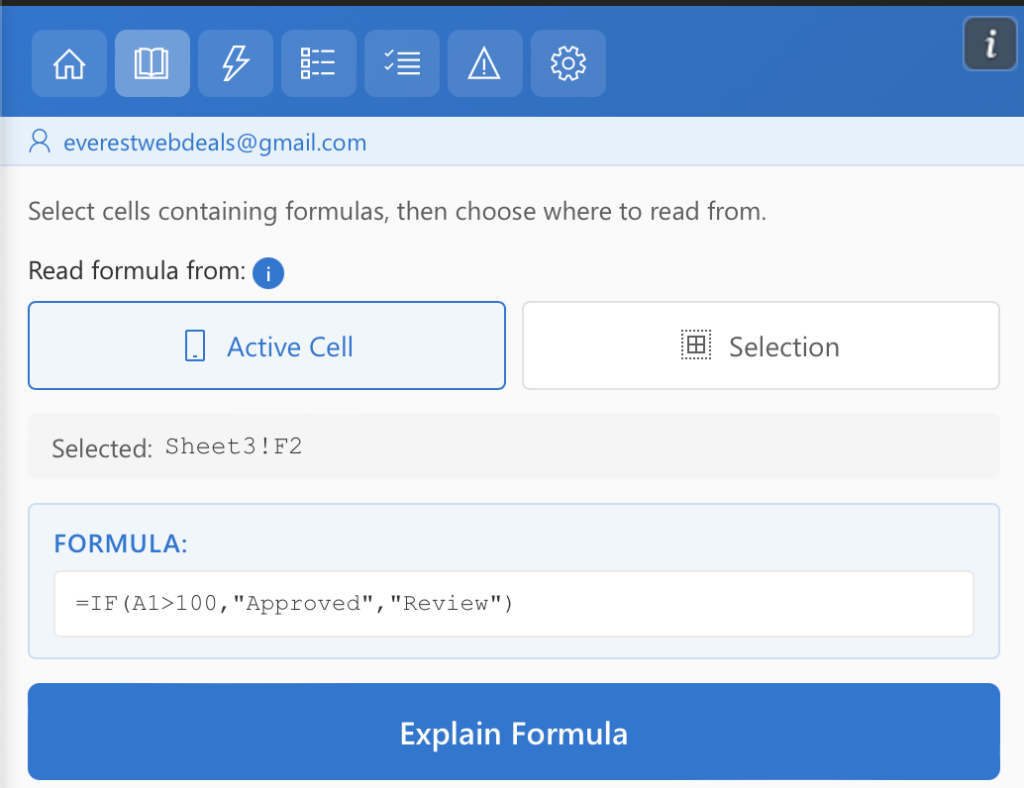
You can generate explanations for formulas in a single cell or across a selected range.
Option 1 — Active Cell
Use this option to explain the formula in one cell.
- Select the cell containing the formula.
- Choose Active Cell in the tool.
- Click Explain Formula.
Excel AI Tools will analyze the formula in the selected cell and generate a clear explanation.
Option 2 — Selection
Use this option to analyze formulas across multiple cells.
- Select a range of cells that contain formulas.
- Choose Selection in the tool.
- Click Explain Formula.
Excel AI Tools will analyze all formulas in the selected range and provide explanations for each one.
Step 3 — Generate the Explanation
Click the Explain Formula button to start the analysis.
Excel AI Tools will analyze the formula or formulas within the selected cell or range. The AI reviews the structure of each formula, including functions, references, and conditions, and generates a clear explanation of how the formula works.
For a selected range, the tool processes all formulas in the range and provides an easy-to-understand explanation for each one, helping you quickly understand calculations, logic, and dependencies across your spreadsheet.
Results
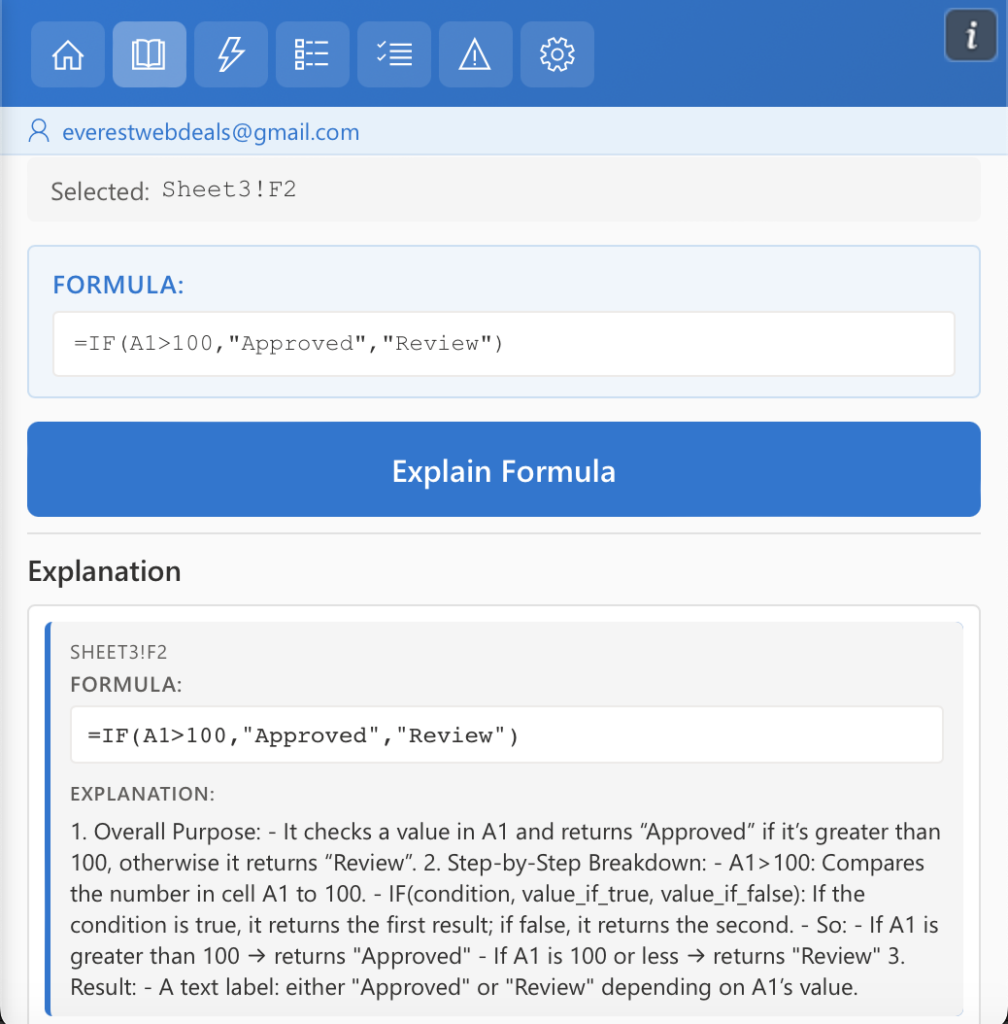
Original Formula Displayed
The explanation panel shows the original Excel formula so you can clearly see the exact expression being analyzed.
Formula Purpose
AI Tools For Excel identifies the purpose of the formula and explains what calculation or logic it performs.
Step-by-Step Explanation
The AI breaks down the formula into clear steps, making it easier to understand how the calculation is performed.
Detailed Function Breakdown
Each part of the formula, including functions, references, and conditions, is explained so you can understand how the formula works.