
AI Tools for Excel Help Center
AI Tools for Excel is an Excel AI add-in built for people who want practical AI for Excel. In other words, it helps you clean data in Excel, fix spreadsheet errors, remove duplicate rows, generate Excel formulas, and explain formulas using plain-language instructions inside Microsoft Excel.
Get started
- Open Microsoft Excel or Excel for the web.
- Click the Install Add-in button on this page, or go to Home > Add-ins and search for AI Tools for Excel or Everest Web Deals.
- In the search results, click Add for AI Tools for Excel.
- Click Accept and Continue to grant the required permissions.
- After installation, open Excel and go to the Home tab.
- Click AI Tools for Excel to open the add-in.
- If you do not see it, go to Home > Add-ins > My Add-ins and open AI Tools for Excel.
*.everestwebdeals.co*.microsoft.com*.microsoftonline.com*.live.com*.office.com
Feature pages
You can also open the detailed feature pages below for more examples and product-specific information. For example, each page covers one feature in more detail and gives users a faster path to the right instructions.
Free trial and plans
AI Tools for Excel is free to install and includes a 30-day free trial. After the trial ends, users can stay on a limited free plan or upgrade for full access. In addition, users can review the subscription page below for more plan details.
View subscription details →| Plan | What is included |
|---|---|
| Free | Explain Formula, Generate Formula |
| Pro | Smart Formatter, semantic duplicate detection, preview before applying changes, Fix Errors with AI, formula generation, formula explanation, priority support |
Smart Formatter
Clean and standardize messy spreadsheet data automatically. For example, it is especially useful when you need to clean data in Excel, convert text to number in Excel, or fix values affected by numbers stored as text in Excel.
Fixes messy values
Numbers stored as text, extra spaces, inconsistent capitalization, wrong decimal separators, messy phone numbers, and more.
Reviews similar values
Can detect values that mean the same thing even when they are written differently.
Lets you choose the format
Pick the most common format, use AI suggestions, or use your own saved settings.
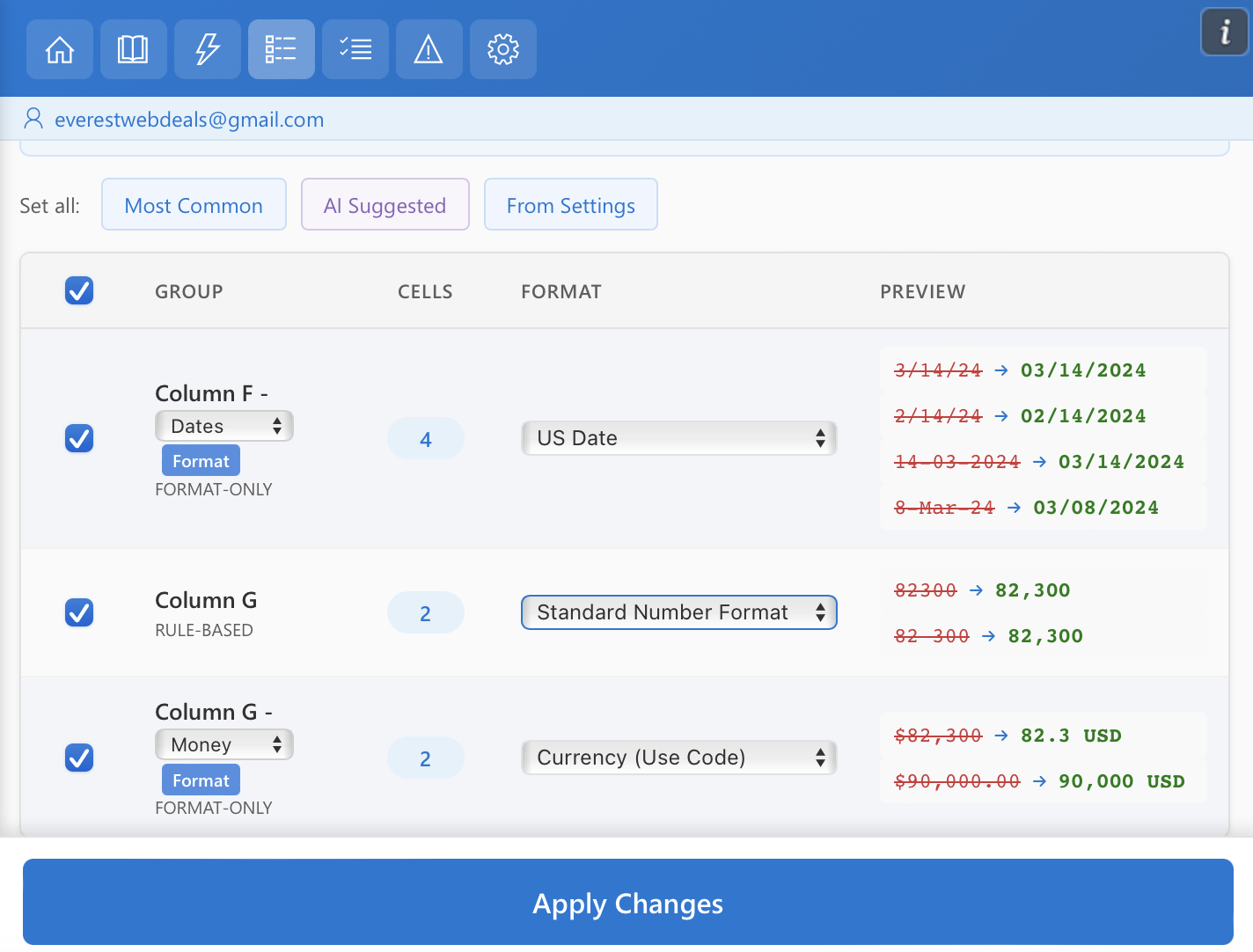
Choose a formatting strategy
Before applying changes, select how the formatting should be standardized across the detected values.
Then, you can quickly apply a global strategy using the Set all options controls:
- Most Common — applies the most frequently used format detected in the data.
- AI Suggested — uses AI analysis to recommend the most appropriate format.
- From Settings — applies the formatting rules defined in the Settings menu.
As a result, these options let you standardize all detected values with a single click before applying the final changes.
How to use it
- Open Smart Formatter.
- Choose Whole Spreadsheet or By Selection.
- Click Find & Format Values.
- Review detected issues and preview changes.
- Choose the format strategy you want.
- Click Apply Changes.
Duplicate Deletion
Find and remove duplicate rows, even when values look different but have the same meaning. As a result, it becomes easier to find duplicates in Excel and remove duplicates in Excel with more context than standard duplicate checks.
How duplicate matching works
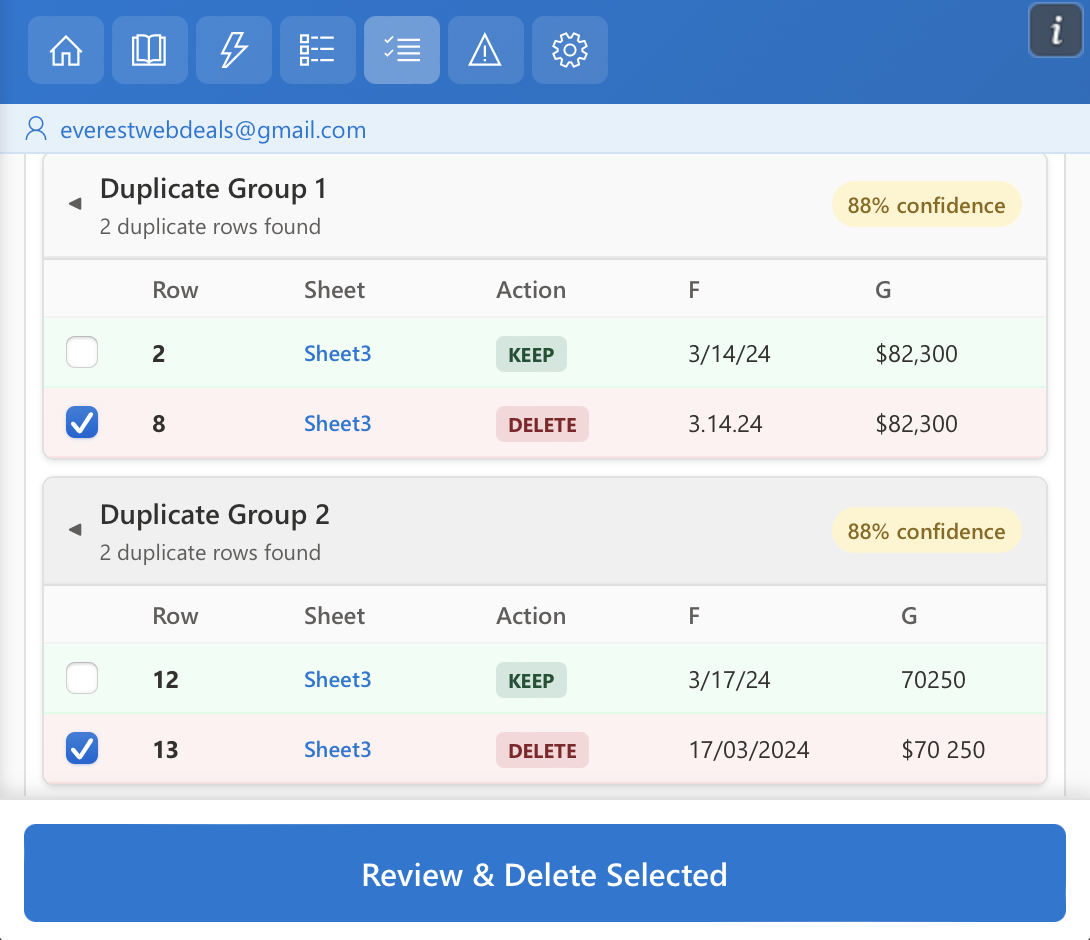
Duplicate Deletion checks duplicates by row, not by each column separately. For example, if you select columns A and B, the tool compares each row as one combined record. In that case, it checks whether A1 + B1 matches A2 + B2 when deciding if two rows are duplicates.
How to use it
- Open Duplicate Deletion.
- Choose where to search: Selected range or Entire sheet.
- Choose a delete mode.
- Click Find Duplicate Rows.
- Review the grouped duplicates, confidence score, and preview.
- Click Delete Now when ready.
| Delete mode | What it does |
|---|---|
| Delete entire rows | Removes duplicate rows and shifts remaining rows up |
| Delete values only | Clears duplicate values but keeps row structure and formatting |
Fix Errors with AI
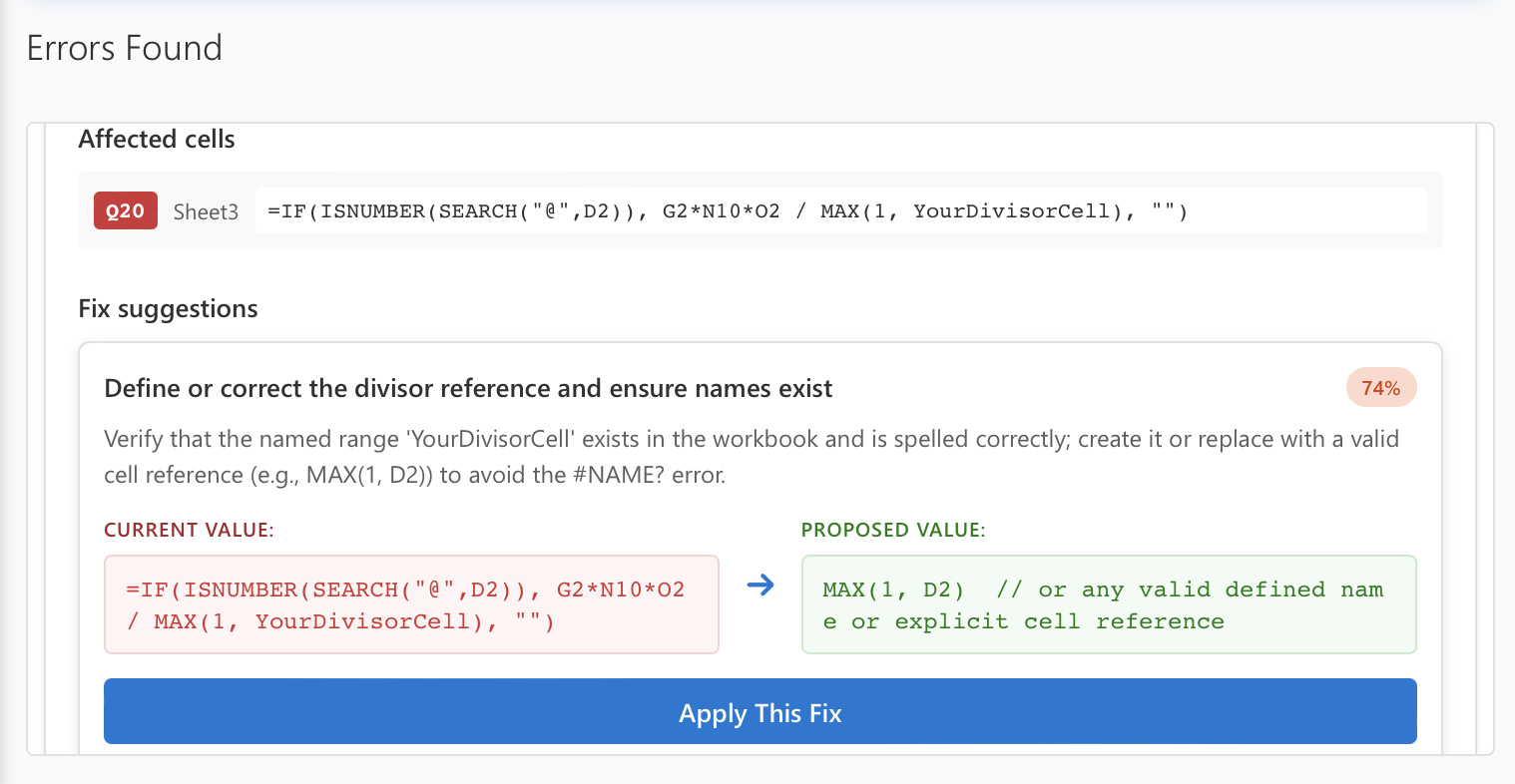
Scan a worksheet for formula errors and review AI suggestions before fixing them. As a result, this feature helps users quickly fix Excel formula errors with clearer explanations and suggested corrections.
What it can detect
#DIV/0!
Division by zero errors
#VALUE!
Wrong data type in a formula
#REF!
Broken or deleted cell references
#NAME?
Unknown names or functions
#N/A
Missing lookup result
#NUM!
Invalid numeric value
How to use it
- Open Fix Errors with AI.
- Click Find Errors with AI.
- Review grouped errors in the results panel.
- Read the explanation and proposed fix.
- Click Apply This Fix to update the cell.
Generate Formula
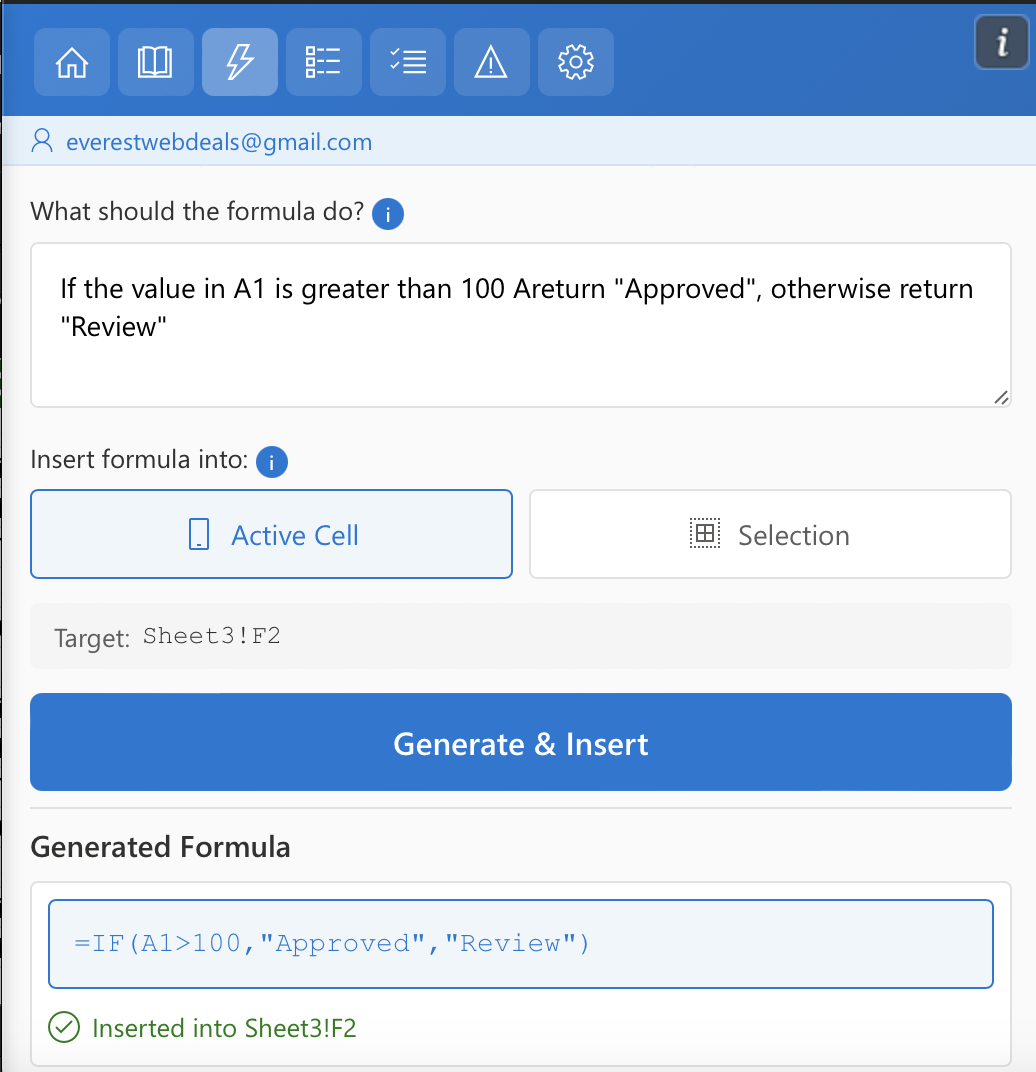
Use plain language to create an Excel formula instantly. In other words, this feature works as an Excel formula generator that helps you build formulas faster inside Excel.
How to use it
- Open Generate Formula from the Excel ribbon.
- Describe the calculation you want the formula to perform.
- Choose Active Cell for one cell or Selection for many cells.
- Generate the formula and insert it into your sheet.
Example prompt
Explain Formula
Understand what a formula does in simple words. This feature helps you explain Excel formula logic clearly before you edit or share a workbook. As a result, it becomes easier to review complex formulas before making changes.
How to use it
- Open Explain Formula.
- Select one formula cell or a range of formula cells.
- Choose Active Cell or Selection.
- Click Explain Formula.
What you will see
The tool shows the original formula, the purpose of the formula, and a simple step-by-step explanation.
View full Explain Formula guide →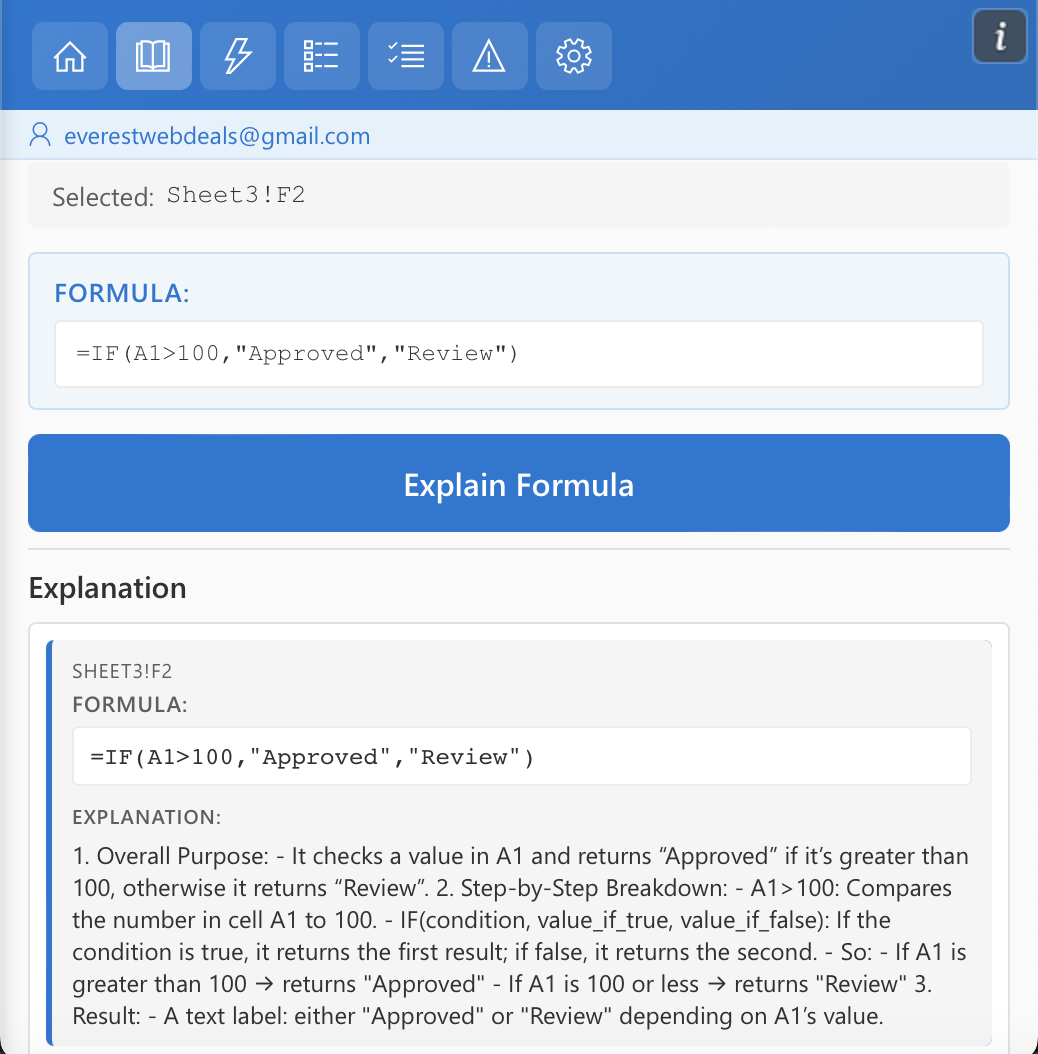
Troubleshooting
Common Excel add-in issues
First, open the issue below that best matches your problem.
The add-in button is missing
- Go to Home > Add-ins > My Add-ins.
- Refresh Excel and open the workbook again.
- Make sure you are using a normal
.xlsxworkbook. - Confirm the add-in is installed in the same Microsoft account you are using in Excel.
The task pane is blank or keeps loading
- Close and reopen the task pane.
- Restart Excel completely.
- Check your internet connection.
- Try Excel for the web to see if the same problem happens there.
- Turn off aggressive browser extensions or content blockers if you use Excel on the web.
I cannot sign in
- Try Excel for the web.
- Try a private or incognito window.
- Check whether your browser, company firewall, or network blocks Microsoft sign-in pages.
- Make sure cookies and pop-ups are allowed for Microsoft sign-in.
The add-in is grayed out
- Open it from Home > Add-ins > My Add-ins.
- Disable workbook protection.
- Try another workbook saved as
.xlsx. - Make sure the sheet or workbook is not in a restricted editing mode.
The tool does not change my cells
- Check whether the correct cell or range is selected.
- Review the preview before applying changes.
- Make sure the worksheet is editable and not protected.
- For bulk tools, try a smaller selection first.
Formula results look wrong
- Double-check the prompt or instruction you entered.
- Make sure the referenced columns and cells contain the data you expect.
- Try rewriting the instruction in a more specific way.
- Use Explain Formula to review how the generated formula works.
Formatting or duplicate results are not what I expected
- Review the grouped items before applying changes.
- Use a smaller selection to test first.
- Check whether values are similar but should still stay separate.
- Save a backup copy of your sheet before applying large bulk edits.
Excel is slow when scanning a large sheet
- Try a smaller selection first.
- Close other heavy workbooks.
- Wait for the current scan to finish before starting another tool.
- Test the same workbook in Excel for the web if the desktop app is struggling.
I still need help
If the problem continues, contact support and include:
- A screenshot or screen recording
- Your Excel version
- Whether you use Excel desktop or Excel for the web
- The exact error message
- The name of the tool you were using
FAQ
Common questions
Next, open a question below to view the answer.
Does AI Tools for Excel work inside Microsoft Excel?
Yes. It is designed to run directly inside Microsoft Excel.
Do I need coding skills?
No. The tools are made for simple, plain-language use.
What can I use for free?
The limited free plan includes Explain Formula and Generate Formula.
Can I preview changes before editing my sheet?
Yes. Pro tools such as formatting, duplicate detection, and error fixing can show a preview before changes are applied.
Can the add-in help with messy data?
Yes. Smart Formatter can standardize dates, numbers, currencies, text, phone numbers, and similar values.
Contact support
Support options
If you still need help, use one of the support options below.
- Email support: everestwebdeals@gmail.com
- Contact page: Contact Us
- Microsoft Marketplace: AI Tools for Excel on Microsoft Marketplace
- Subscription details: View subscription details